
A basic sports broadcasting setup needs a way to capture each voice, route the sound into recording or streaming software, monitor it and deliver it to the audience. For video, add a suitable camera path and an operator who can keep the required action visible.
Build the equipment list around the assignment. Practicing commentary at home, recording a two-person podcast and producing a live game are different jobs. Write down what the finished output must contain before buying another device.
Start with the job and the existing equipment
List the number of local speakers, any remote guests, whether you need video and where the output will go. Record what the venue supplies and what you must bring. Confirm access and broadcast arrangements with the organizer separately from equipment planning.
For solo practice, a working microphone, headphones and a recording device can be enough to learn from a saved performance. A live assignment adds requirements such as the transmission connection and a way to verify what the audience receives.
Before purchasing, inventory equipment you can borrow or use through a school, station or production partner. Test it in the planned setup. Familiar equipment with a verified path is more useful on the day than a new collection of devices you have never connected.
Understand the microphone and headphone paths
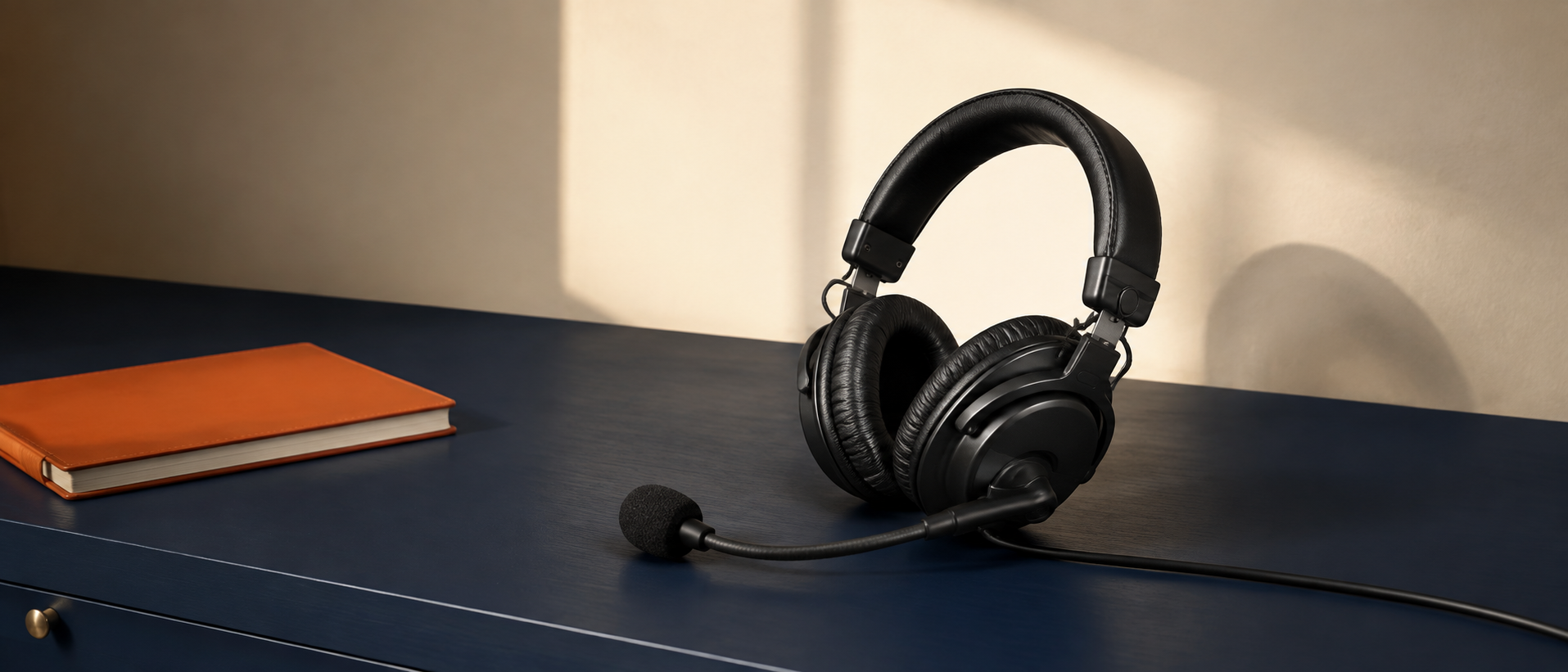
A headset combines a microphone and headphones, but those parts perform different jobs. The microphone sends your voice toward the recording system. The headphones let you hear the chosen monitor feed.
For a concrete example, Audio-Technica’s BPHS1 sheet specifies a three-pin XLR microphone connector and a separate quarter-inch headphone plug. Connecting the headphone plug does not also put the microphone into your computer.
Read the manual for the exact model and cable you have. Check which input receives the microphone and how the headphones receive the mix. Do not assume a plug-shape adapter supplies a missing audio interface or makes every headset compatible with every device.
Count usable microphone inputs
If two people will speak at the same location, confirm that the setup can accept both microphones at once. Count the inputs intended for microphones, not every socket on the box. Also check how both speakers will hear the required monitor feed.
The Scarlett Solo fourth-generation hardware guide, for example, identifies input 1 as line/instrument and input 2 as microphone. That is a useful reminder that two numbered inputs do not necessarily mean two microphone inputs.
This example explains a compatibility check, not a recommendation to buy that interface. Compare your actual microphones, input types, computer connection and software support. If the plan depends on multiple USB microphones, verify that combination with the intended software before treating it as a working two-person system.
Route and monitor the intended sound
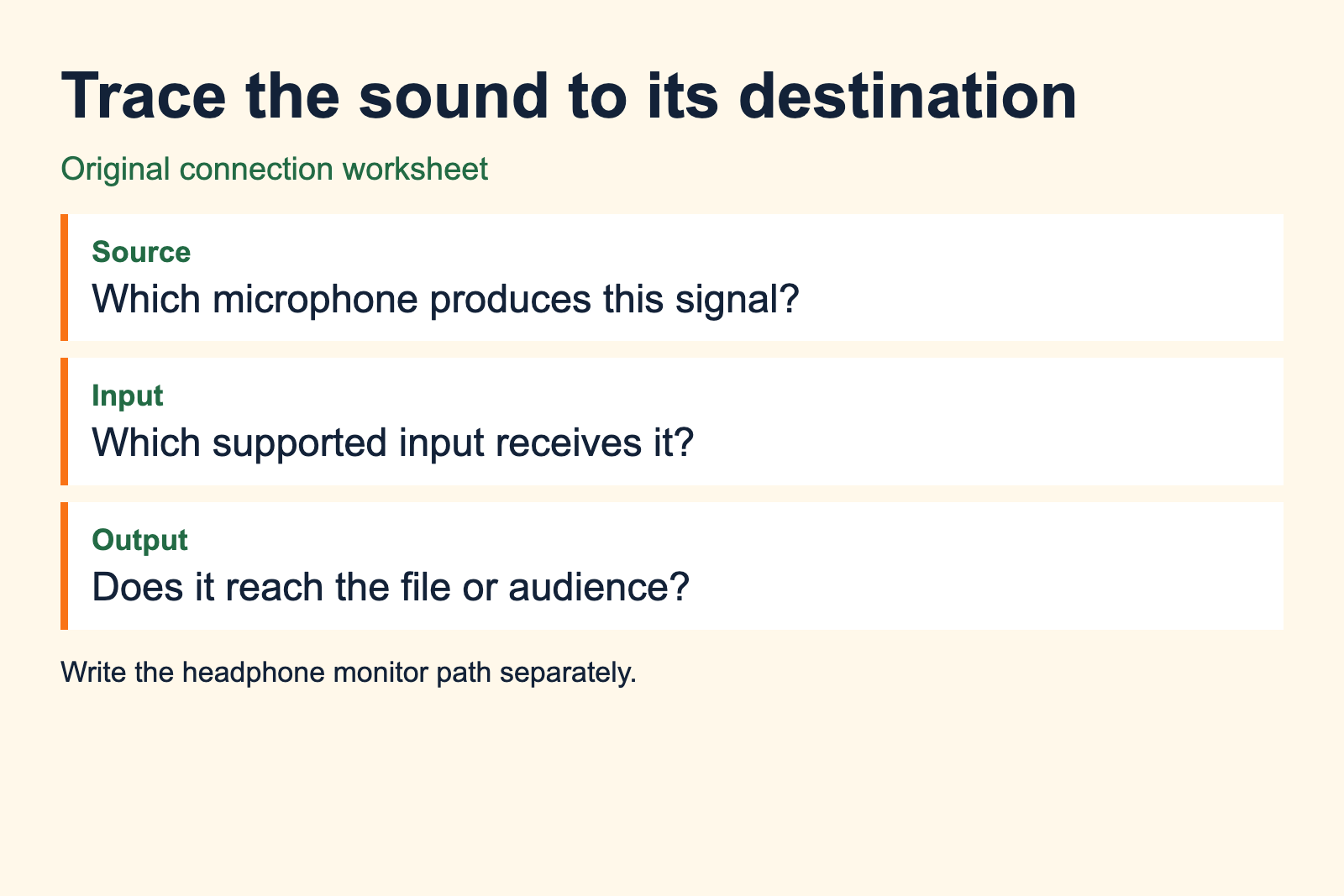
Draw the path in words: microphone to receiving input, input to software, software to saved file or transmission. Then describe the headphone path. Knowing where each signal should go makes a missing voice easier to investigate.
Focusrite’s connection guide shows the interface-to-computer USB link and explains model-specific loopback routing. Follow your own interface’s instructions when combining computer playback with microphones. Incorrect routing can create feedback or send the wrong mix.
Hearing yourself in headphones proves only that the monitor path is working. Check that the recording or streaming software receives the correct microphone too. Test each speaker alone, then together, so you can identify a missing channel or an unexpected duplicate.
Add video only when the assignment needs it
A video setup needs a camera view that serves the event and a supported route into the production system. Confirm the camera’s actual output, the capture device’s accepted signal and the computer connection before relying on the combination.
The OBS Quick Start Guide distinguishes video sources from audio devices and recommends a test before recording or streaming. Select the intended sources explicitly. A moving meter beside the wrong microphone is not a successful audio check.
Use the game-filming guide to plan the view and recording routine. If you are also calling the game, decide who operates the camera when the commentary requires your full attention.
Plan power, storage and the connection
Make a list of the batteries, chargers and cables required by the equipment you are actually taking. Confirm permitted power access at the venue. Keep equipment and cables out of routes used by spectators and event staff.
Test the planned recording duration against available storage and the device’s documented limits. Include setup time and possible delays. Keep enough room for the local recording you intend to retain, and confirm where that file is being saved.
For a live stream, test the connection at the location under conditions as close to the event as possible. Agree on a response if transmission fails. A local recording can preserve your work, but it does not mean the audience received the live program.
Rehearse the complete setup
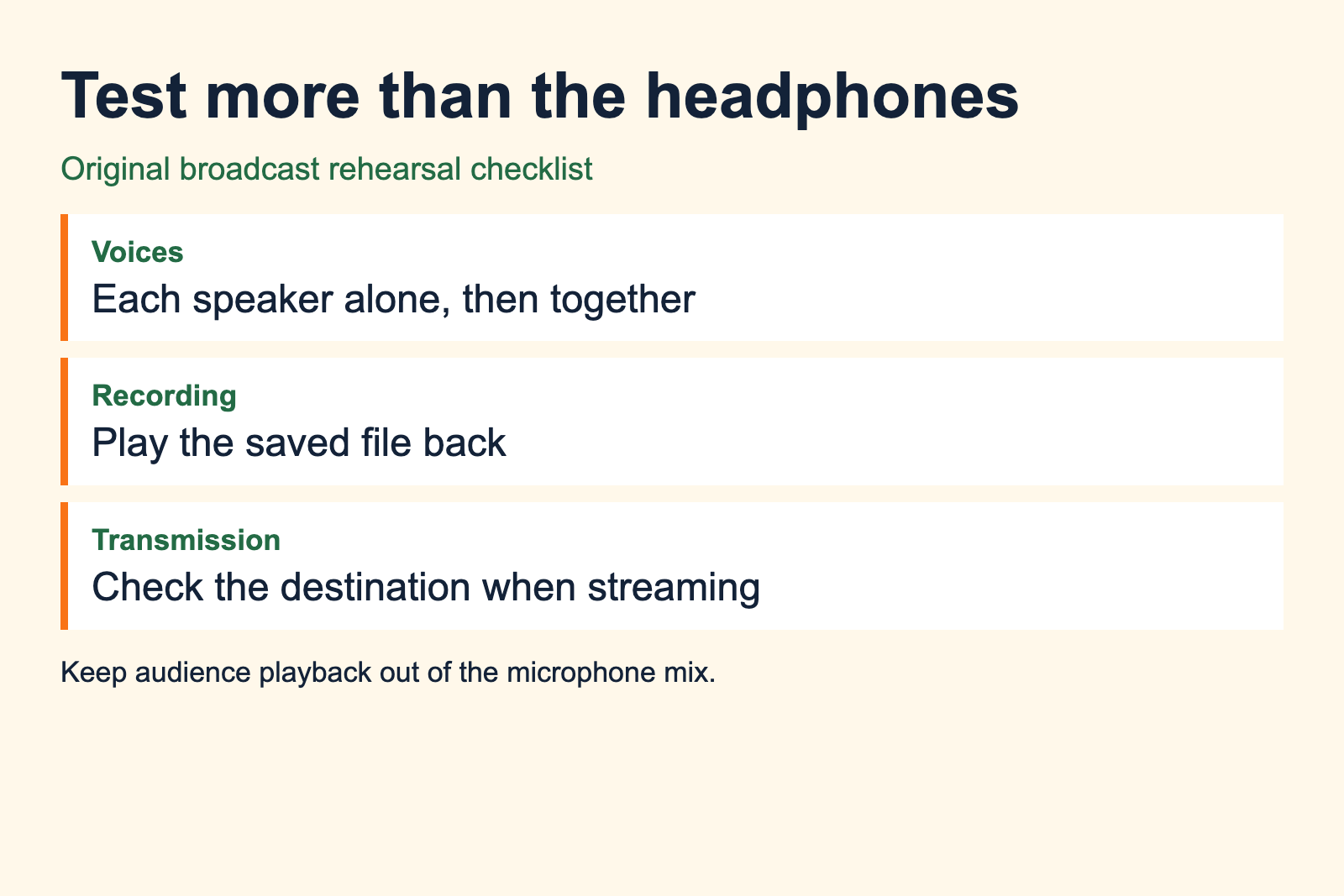
Run a short practice that includes normal speech, an excited call and both voices if there is a partner. Play the saved file back. For a stream, check the destination output on a separate listening device without feeding that audio back into the microphones.
Use the commentary practice workflow to give the test realistic content. Listen for intelligibility, distortion, missing sound and interruptions while you turn pages or adjust your position.
Write down the working connections and settings after the test. Label the cables by purpose and pack any tested spare that addresses a likely failure. On arrival, rebuild that known setup and repeat the output check before the assignment begins.
Keep a short test recording and a note of your signal path. When presenting a production sample, explain what you recorded or mixed and make the finished audio easy to play.
Sources
- Audio-Technica, BPHS1 manufacturer sheet.
- Focusrite, Scarlett Solo Hardware Features and Using Your Solo Fourth Generation, updated July 16, 2026.
- OBS, Quick Start Guide, accessed September 2026.